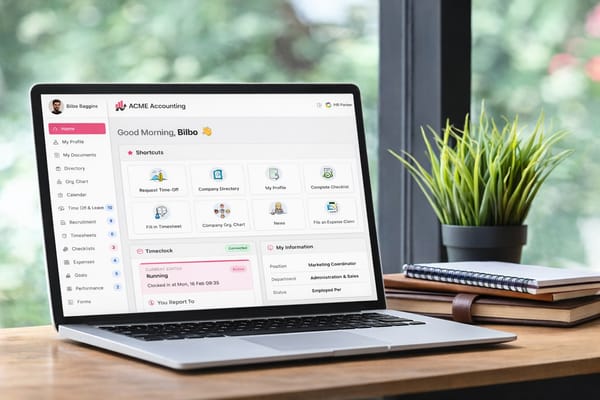
HR Partner now supports two-way Xero employee sync

We’ve introduced full two-way integration with Xero Payroll, allowing employee data to stay in sync across both systems.
Previously, Xero acted as the primary source of truth for employee details. Based on customer feedback, we’ve expanded this functionality so that updates made in HR Partner — including new employees — can now also sync directly to Xero.
This creates a more seamless and efficient workflow when managing employee information across both platforms.
This integration is available for Xero AU, NZ and UK payrolls.
What’s new
• Employee data can now sync from HR Partner to Xero
• Updates made in either system stay aligned
• New employees created in HR Partner can be pushed to Xero
• Reduced need for manual data entry across systems
• Support across Xero AU, NZ and UK payrolls
Getting started
To enable two-way syncing, go to:
Employees → Data → Integration
Turn on the two-way sync option and click Save Sync Settings.
If you have multiple Xero companies linked, you’ll need to enable this setting for each company individually.
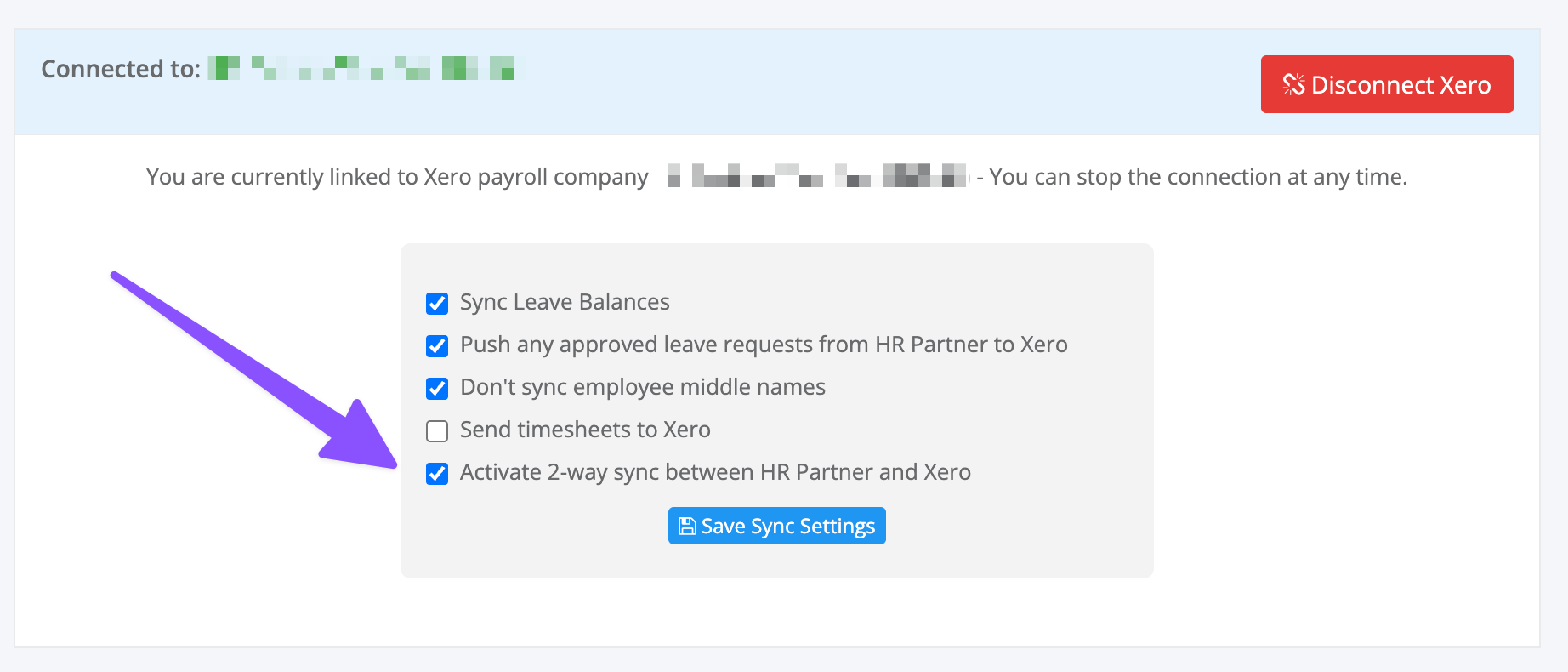
Turn on the setting and save your sync preferences.
Repeat this for each Xero company if you have more than one connected.
Adding new employees
Once two-way integration is enabled, you’ll see a new option at the bottom of the Add Employee screen.
You can choose whether to add the employee to Xero at the same time.
• If selected → the employee is created in both HR Partner and Xero
• If not selected → the employee remains in HR Partner only
When you click Save, the employee details are sent to Xero automatically in the background.
This option is also available when hiring a candidate via the Recruitment module.
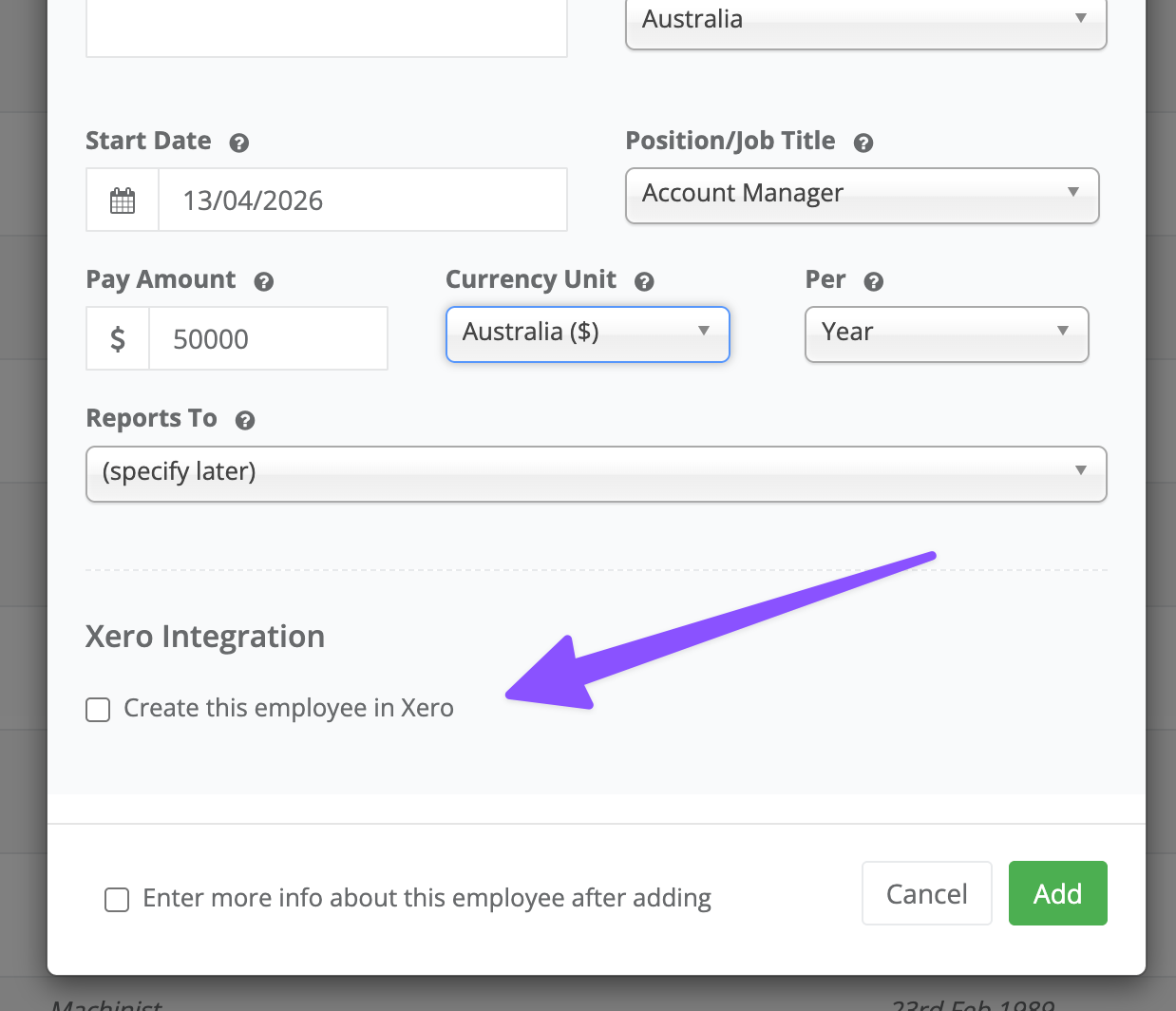
Choose whether to create the employee in Xero during setup. This gives you flexibility to manage records in one or both systems.
Using multiple Xero companies
If more than one Xero company is linked, a dropdown will appear allowing you to select which payroll company the employee should be added to.
If only one company is linked, this selection is handled automatically.
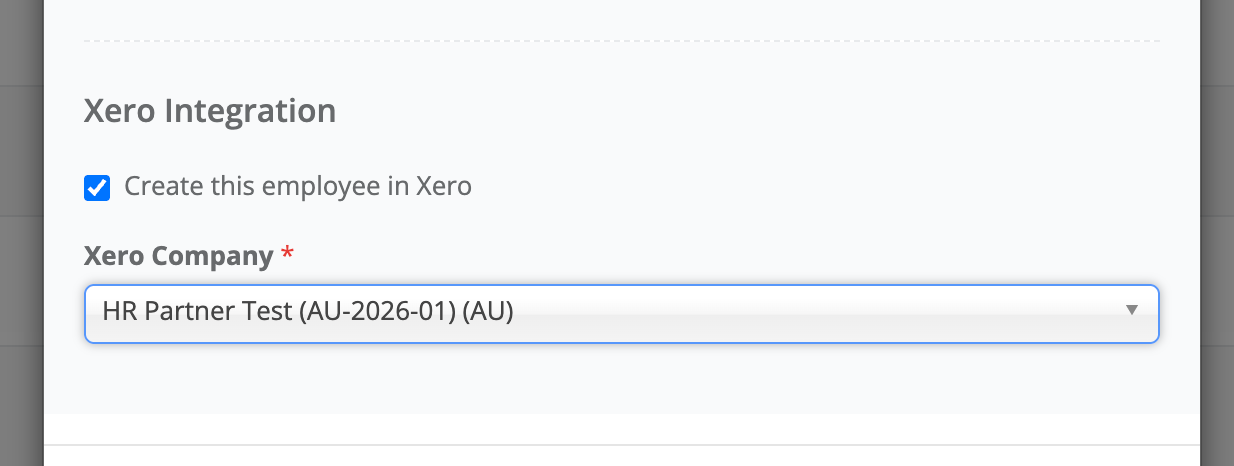
Select the relevant Xero company when adding a new employee if more than one is connected.
Xero UK requirement
If you are syncing employees to a Xero UK payroll, there is one additional step required.
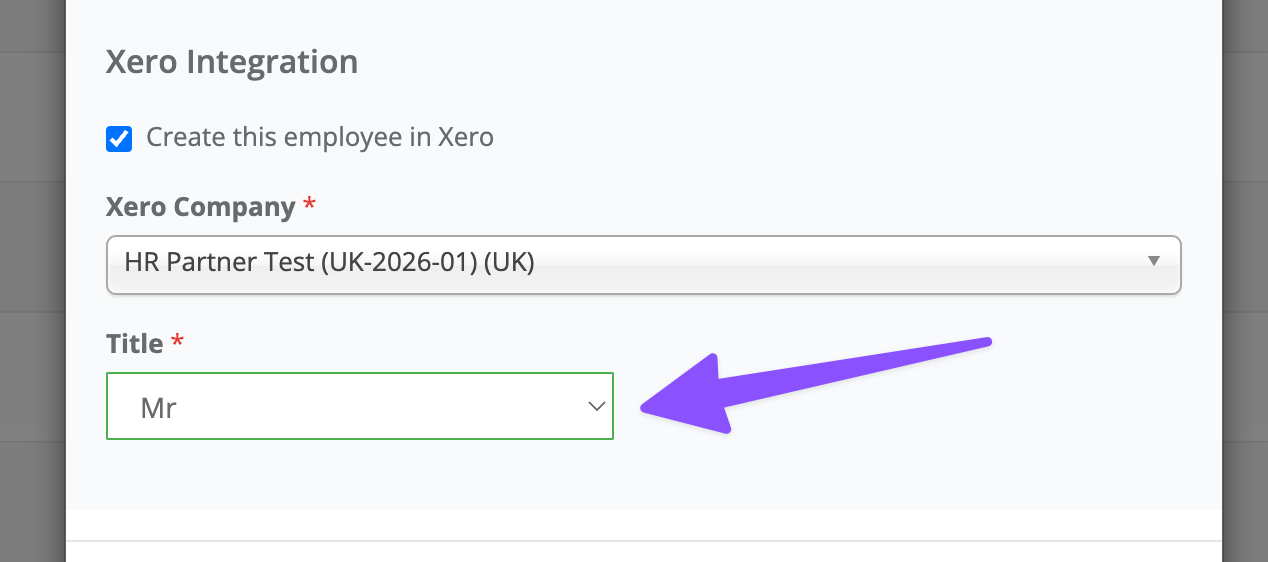
Xero requires an employee title (honorific), which is not stored in HR Partner. You will be prompted to select a title before the employee can be synced.
When adding an employee to Xero UK, select a title (e.g. Mr, Mrs, Ms) before saving. This is required by Xero and handled during employee creation.
Current limitations
At this time, employees created via CSV import or the API are not automatically synced to Xero.
Updating employees
Once an employee is linked to Xero, updates can sync between both systems.
Changes made in either HR Partner or Xero will be reflected in the other system during the next sync cycle.
Syncing runs automatically in the background every 4 to 8 hours.
If you don’t see a change reflected immediately, allow a few hours for the next sync cycle to complete.
Important sync behaviours
To ensure smooth syncing between HR Partner and Xero, it’s helpful to understand how updates are handled.
How updates are prioritised
HR Partner determines which system to update based on where the most recent change to employee core information was made.
In most cases, this ensures the latest information is kept aligned across both systems.
The most recent update (from either HR Partner or Xero) is used to determine which data is synced.
Data conflicts (rare)
In rare cases, if updates are made in both systems around the same time, older information may override newer information.
If something doesn’t look right, review the employee record and update the correct information — it will sync again on the next cycle.
Completing onboarding in Xero
When a new employee is created in HR Partner and pushed to Xero, only the initial employee record is created.
Additional details such as tax information, pay rates and payroll setup must be completed directly in Xero.
Until this onboarding is completed, further updates from HR Partner will not sync to Xero.
Finish setting up the employee in Xero after creation to ensure ongoing updates sync correctly between both systems.
Monitoring and troubleshooting
If you don’t see employee data being created or updated in Xero:
• Allow time for the next sync cycle (4–8 hours)
• Ensure onboarding has been completed in Xero
• Check for any sync issues in the system log
Go to:
Setup → Tools → System Log
This log provides visibility into employee sync activity.

Open the System Log and select Details on any record to see more information about what happened during syncing.
What information gets synced?
HR Partner supports syncing a range of employee information with Xero Payroll. The available fields vary depending on your Xero region (AU, NZ or UK).
| Information | AU | NZ | UK |
|---|---|---|---|
| Title | ✓ | ||
| First Name | ✓ | ✓ | ✓ |
| Last Name | ✓ | ✓ | ✓ |
| Date of Birth | ✓ | ✓ | ✓ |
| Gender | ✓ | ✓ | ✓ |
| ✓ | ✓ | ✓ | |
| Phone | ✓ | ✓ | ✓ |
| Mobile | ✓ | ||
| Address Line 1 | ✓ | ✓ | ✓ |
| Address Line 2 | ✓ | ✓ | ✓ |
| City | ✓ | ✓ | ✓ |
| Suburb | ✓ | ||
| State | ✓ | ||
| Post Code | ✓ | ✓ | ✓ |
Available fields differ between Xero AU, NZ and UK payrolls. Refer to the table above for details specific to your region.
Additional notes
HR Partner supports storing multiple contact details for employees. When syncing to Xero:
• Only the first Home address is sent
• Only the first email, phone, and mobile are synced
What this means for you
You can now manage employee data more efficiently in HR Partner while keeping Xero aligned automatically.
This helps to:
• Reduce duplicate data entry
• Keep employee records consistent across systems
• Simplify onboarding and ongoing updates
• Support regional payroll requirements more clearly
Need help?
As always, please reach out to our friendly support team if you are having problems with two way syncing between HR Partner and Xero.
We are always here to help.